Drupal Theme from Scratch Drupal Theme from Scratch icon
Theming a Drupal 7 Website


The Views Module Templates

Views is a module that is so widely used within the Drupal community that it has been added to Drupal Core in version 8.

A basic explanation of Views: it is a user interface to create database queries that display specific content dynamically. In truth it can create quite complex database queries (that's the good part). It also allows you to control the design of the output through its user interface (that's the bad part). Well it's not bad if you don't understand HTML, CSS or PHP. But if you're at least a semi-competent web designer (like myself), then you're much more comfortable designing within the code. I want ALL my CSS in my CSS file. I don't want half in my CSS file and half spread out throughout the Drupal admin.

The Views module is powerful and quite useful. At the same time it's a complex beast. Ideally, I wish there was a version of Views specifically for people like me. A version with all (or most) of the design controls stripped out (hint, hint). Then there would be less settings to go through and it would be easier to find the settings I'm looking for. And it would be less intimidating to new Drupal users.

The Views module comes with lots of options and settings to play with and it gets very confusing very fast. On the template side of this beast, our job doesn't get much easier. Views comes with several templates. If we were to create a simple View and chose to design it's output using the standard templates the way they come, we would potentially have a handful of templates controlling the code for one small View.


Views Block Templates

Let's say you wanted to create a Views Block called Upcoming Event for your home page that called up the title, date and location fields of the next 3 events. The standard templates would have you copy, paste and rename five templates...

  • views-view--upcoming-event--block.tpl.php
  • views-view-fields--upcoming-event--block.tpl.php
  • views-view-field--upcoming-event--block--title.tpl.php
  • views-view-field--upcoming-event--block--field-date.tpl.php
  • views-view-field--upcoming-event--block--field-location.tpl.php

The first template controls the View as a whole and allows you to wrap custom HTML/CSS around it. The second one on the list controls each entry (each of the 3 events listed in this View) and allows you to wrap custom HTML/CSS around each of them. The next three templates control each of the three fields and are named accordingly. This allows you to easily style each field with their own specific HTML/CSS.

This can all be controlled within the Views UI, allowing you to avoid making your own templates, but then you'll have to open and close a LOT of option windows and have to remember how everything was set up and where every setting is later. That's not fun.

views-view--upcoming-event--block.tpl.php
HTML/CSS

views-view-fields--upcoming-event--block.tpl.php
HTML/CSS Content... HTML/CSS

views-view-field--upcoming-event--block--title.tpl.php
HTML/CSS Content... HTML/CSS

views-view-field--upcoming-event--block--field-date.tpl.php
HTML/CSS Content... HTML/CSS

views-view-field--upcoming-event--block--field-location.tpl.php
HTML/CSS Content... HTML/CSS

HTML/CSS
HTML/CSS

An Easier Way to Use Views Templates

My method is to just use the templates and not add any styling in the UI but we're going to use fewer templates. In most cases we can get away with using just 1 template for each view. Eventually your website will have multiple Views and some are going to be more complex than this one. Rather than filling your templates folder with 5 templates for every View, we'll just use 1 per View...

  • views-view-fields--upcoming-event--block.tpl.php

Copy the views-view-fields.tpl.php from sites > all > modules > views > theme folder. Make sure NOT to mistake it for the views-view-field.tpl.php. Paste the correct one into your templates folder, name it as I did above, and then replace the code inside it with something similar to this...

<h4 class="title"><?php print $fields['title']->content; ?></h4>
<p class="date"><?php print $fields['field_date']->content; ?></p>
<p class="location"><?php print $fields['field_location']->content; ?></p>

Now you have one template to control the layout of your Upcoming Event View.

Notice the differences in how these field variables are called? They are clearly different from how we render a field in a node template. Even though they are the same fields, the Views templates call them differently because it generates its content differently.

Moving forward, you'll only need to create a new copy of views-view-fields.tpl.php template for each new View you create. So if your website has ten Views, you'll create ten templates.


Add a View to a Node Template

Now to add the View to your node--home-page.tpl.php template.

<div class="row">
<div class="container">
  <h2>Upcoming event</h2>
  <?php print views_embed_view('upcoming_event', 'block'); ?>
</div>
</div>

From the code above you can see I've added my own DIVs to wrap our View, added my own heading and called our View using the views_embed_view function (see Inserting Blocks Without Using Regions for help in finding the machine name for your View).

Notice that Views machine names use underscores rather than hyphens.

So we're styling the view data itself inside the views-view-fields--upcoming-event--block.tpl.php template while wrapping the whole View with additional custom CSS/HTML inside the node--home-page.tpl.php template.


Views Module Settings

When you use the templates this way, you don't have to worry about as many of the settings within the Views settings page. But you will want to turn off a lot of them. Most of my Views use the following settings to allow for the most design control...

  • Format > Format: Unformatted List > Settings
    • Uncheck 'Add views row classes'
    • Uncheck 'Add striping (odd/even), first/last row classes' (unless you need it or can't provide it yourself with CSS)
    • Click "Apply"

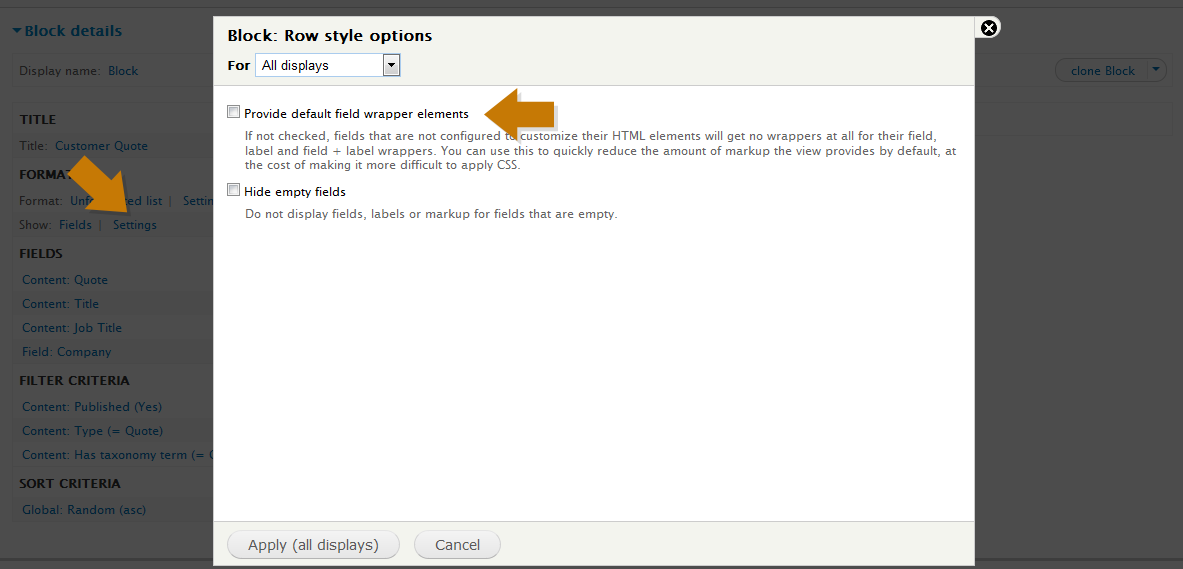
  • Format > Show: Fields > Settings
    • Uncheck 'Provide default field wrapper elements'
    • Click "Apply"

  • For each field under Fields (annoying when you are pulling in a lot of fields)
    • Uncheck 'Create a label'
    • Select 'Plain text' under Formatter
    • Uncheck 'Add default classes'
    • Sometimes you may have to check 'Customize field HTML' and select 'none' from the drop down
    • Sometimes you may want to uncheck 'Link this field to the original piece of content' on your Title and add the Path field instead for more complex linking effects
    • Click "Apply"

All the fields within your View have now been stripped of 90% of the HTML that Drupal would create for them. We've stripped most of it down so that it outputs, in most cases, just raw text. We've also told Drupal not to add any of its CSS classes anywhere.

At the bottom of your View's settings page (in the preview section) your content should be all bunched together with very little to no HTML breaking it apart. Do a right-click > View Source in your browser to confirm what Drupal has generated. Then you know you can 'have at it' and there will be little chance of any extra code showing up on your page that you didn't want.

Under Advanced > Theme you'll find a handy reference pop-up to give you clues as to what to call your View templates and at the same time it can tell you which ones your site is currently using (in bold).


Views Page Templates

Views Pages are handled a little differently than Views Blocks. Create a Views Page called "Events Main Page", then copy the views-view.tpl.php file and save it as views-view--events-main-page--page.tpl.php. This template will control any content surrounding the View results. Add your own content to the top or bottom of this template.

I only followed this step on a few occassions to remove the "view-content" DIV. But this ended up breaking the Ajax/Filters in my View. So I wouldn't advise removing that DIV on Views that need it. To compensate, I added another IF/ELSE statement to my page.tpl.php and added my top content there.

If you have a filter or search form within this View, you'll want to copy the views-exposed-form.tpl.php template and save it as views-exposed-form--events-main-page--page.tpl.php in your templates folder. This wraps the form itself with HTML/CSS.

I used this template mostly to add a wrapping DIV with my own class and then referenced that class to style the entire form.

For the Views' results, copy the views-view-fields.tpl.php file and save it as views-view-fields--events-main-page--page.tpl.php. This will work just like the one we created for the Views Block. Replace the code with your field variables and wrap them in your custom HTML/CSS.

All of this still resides within the page.tpl.php.

There are dozens of other Views templates. One to check out would be the views-view-table.tpl.php for designing a View that you've set to "table" format.

page.tpl.php
HTML/CSS Content... HTML/CSS

views-view--events-main-page--page.tpl.php
HTML/CSS Content... HTML/CSS

views-exposed-form--events-main-page--page.tpl.php
HTML/CSS Filter/Form... HTML/CSS

views-view-fields--events-main-page--page.tpl.php
HTML/CSS Content... HTML/CSS

views-view-fields--events-main-page--page.tpl.php
HTML/CSS Content... HTML/CSS

views-view-fields--events-main-page--page.tpl.php
HTML/CSS Content... HTML/CSS

HTML/CSS Content... HTML/CSS

HTML/CSS Content... HTML/CSS


Views Module Tip!

If your View works in the Preview Panel at the bottom of the Views interface but not on your site, chances are good that the problem is in your templates. It could be in your views-view template, your views-view-fields template or even your template.php file.


Overview of Our Drupal 7 Templates

In comparison to the Realistic View of Templates diagram we saw earlier, this revised diagram gives you a more detailed look at how your templates (including some Views templates) will be setup using the methods described in this documentation...

html.tpl.php
<HEAD>
</HEAD>
<BODY>
<DIV>
page.tpl.php
Login & Main Nav (header content)
<DIV>
node--event.tpl.php
<DIV style="background-image:url('main-image');">

<H1>Event Title</H1>

</DIV>

<DIV>

<DIV>
Event Date
Event Location

Body

if this page is titled 'Special Event'...
<DIV> Special Event Video

views-view-fields--special-event-video--block.tpl.php
HTML/CSS Content... HTML/CSS

</DIV>
otherwise don't show anything

Start Accordion Effect ==============
Event Agenda
End Accordion Effect ==============

</DIV>

</DIV>

</DIV>

Bottom Nav (footer content)
</DIV>
</BODY>
</HTML>

The results of this method so far:

  • Fewer Templates: 5 templates control the overall look of this page. Only 3 of them specifically target this page (html.tpl.php and page.tpl.php affect all pages).
  • No Regions: We did all this without having to create any custom regions, reducing additional complexity and the number of templates involved.
  • Fewer Modules: The only module involved in this page is the Views module. No layout modules were used, reducing the need to edit any settings in Drupal's backend.
  • Fewer DIVs: Because of the generic templates in our templates folder, we have a lot less HTML and CSS being generated by Drupal.
  • Less Confusion: In most cases whenever we need to edit the design of our Event pages, we will only have 3 templates and our CSS file that we will need to access. And thanks to our special comments, we will know exactly which one to edit.

*If you do not see the social network icons here, it is because you have an ad-blocker running. Deactivate it for this site if you want to share this link. It is safe. There are no ads on this site.

This documentation is a work-in-progress. As I continue to learn more about the software, I will try to keep this documentation updated. I'm no expert of anything, so if anyone feels they need to correct me about something I've written or wish to add some additional tips, feel free to mention it in the comments.

"Drupal 7 Theme from Scratch" was written by TenTen71 because no one else would.