Drupal Theme from Scratch Drupal Theme from Scratch icon
Theming a Drupal 7 Website


Drupal 7 Theme Templates

Basic Drupal 7 Template Hierarchy

  • theme-name.info - defines the theme
  • template.php - programs the theme
    • html.tpl.php - effects every page on the site
      • page.tpl.php - effects every page on the site
        • node.tpl.php - effects every node on the site
          • region.tpl.php - effects every region on the site
            • block.tpl.php - effects every block on the site
              • field.tpl.php - effects every dynamic element on the site

Drupal 7 Theme File Structure

Start by creating a folder called 'myTheme' in sites > all > themes. This folder will soon contain an .info file, a template.php file, a logo.png, and a screenshot.png.

I'm not sure if the logo.png is required. I know it's only necessary if you're using the built-in logo option when setting up your site. I prefer to hard code my logo graphic into the template. Hardcoding the logo also gives me the option to use a GIF or SVG if I want instead of Drupal's choice of PNG. But I will leave Drupal's default logo.png in the theme folder to avoid any issues.

The screenshot.png is just a small screenshot (or logo) that represents your theme on the theme selection page inside Drupal. Once your theme is finished, take a screenshot of your main page and re-size and crop it to replace the default screenshot.png.

Next you'll create 4 folders within your theme folder and name them css, js, images and templates. I'm sure you can guess what will go in each.

The Drupal 7 .info File

Your .info file will contain some simple instructions to help Drupal identify and use your theme. Create a file called 'myTheme.info' and save it in your myTheme folder. You can use the code below as an example. Your .info file must have a name to identify the theme, the description is optional and core lets Drupal know what version of Drupal you've coded your theme for. This is important to note for whomever uses your theme. Drupal will not allow it to be activated in any other versions. Since coding techniques are different between versions of Drupal, this is a good thing to know.

Next you can define your global CSS and JS files. I stress the fact that these are global. That means these files will load on every page. If you don't want or need a specific file to load on every page of your site, then don't include it here.

Finally, we have regions. We will not be defining any custom regions for this theme. However, Drupal requires that the three regions listed below be included in all themes. These regions are used by modules and Drupal core.

name = MyTheme
description = A happy new theme created by me.
core = 7.x

stylesheets[all][] = css/style.css

scripts[] = js/jquery-1.9.0.js
scripts[] = js/scripts.js

regions[page_top] = Page Top
regions[content] = Content
regions[page_bottom] = Page Bottom
.info
template.php
logo.png
screenshot.png
css
js
images
templates

If you are creating a website for a client who requests more control over the layout and is not comfortable coding HTML, CSS or PHP, you will probably need to add custom regions to your project.


Your Theme's Templates Folder

Inside the templates folder is where the template hierarchy begins. Drupal actually supplies us with all the default templates we need. Below is the list of files you will need to get and where to find them within Drupal's folder structure (the links are just for additional reference information on each template). Go ahead and copy each of the files and paste them into your 'templates' folder.

Example:
• Go to MY-DRUPAL-SITE-FOLDER\modules\system\html.tpl.php
• Copy this file
• Go to MY-DRUPAL-SITE-FOLDER\sites\all\themes\myTheme\templates
• Paste the html.tpl.php file there

Once Drupal sees these files in your active theme (after you flush your Drupal cache), it will begin to use your copies rather than the Drupal Core versions. You'll see this is true once you start making edits to your templates.


How Drupal 7 Sorts Through Templates

  1. Drupal looks for your html.tpl.php file to find out how to render the <html> and <body> tags as well as the <head> section of your pages.
  2. Drupal looks for your page.tpl.php file to find out how to render the content between the <body> tags for every page on your site (by default).
  3. If you have a node level template file (like node.tpl.php or node--event.tpl.php) in your folder (which you will), then Drupal uses the node template for your main content and only uses the page.tpl.php file to render the HTML above, below and along the sides of your main content for every page on your site. This makes the page.tpl.php file the perfect place for your header and footer content.

At this point the page.tpl.php file will still be in control of your home page design -- but that will change soon.

html.tpl.php
    <HTML>
       <HEAD>
       </HEAD>
       <BODY>
page.tpl.php
    <DIV class="header"></DIV>
node.tpl.php
    content...
    <DIV class="footer"></DIV>
       </BODY>
    </HTML>

Remove All the Unnecessary DIVs and Classes from Your Drupal 7 Templates

The rest of your hierarchy list contains more specific templates. With them we can control how your regions (region.tpl.php), blocks (block.tpl.php) and fields (field.tpl.php) are wrapped with HTML. You can even tell Drupal not to wrap them in HTML (or at least not Drupal's HTML).

I actually only include these three files in the theme to control the DIV count. To override Drupal's DIV-crazy HTML, open your copy of the field.tpl.php file. It should look pretty much like this (plus some commenting)...

<div class="<?php print $classes; ?>"<?php print $attributes; ?>>
  <?php if (!$label_hidden): ?>
    <div class="field-label"<?php print $title_attributes; ?>><?php print $label ?>: </div>
  <?php endif; ?>
  <div class="field-items"<?php print $content_attributes; ?>>
    <?php foreach ($items as $delta => $item): ?>
      <div class="field-item <?php print $delta % 2 ? 'odd' : 'even'; ?>"<?php print $item_attributes[$delta]; ?>><?php print render($item); ?></div>
    <?php endforeach; ?>
  </div>
</div>

We can cut it down to this without losing any functionality...

<?php foreach ($items as $delta => $item): ?>
  <?php print render($item); ?>
<?php endforeach; ?>

By doing this we lose layers of nested DIVs and classes we don't need.

We could add in our own DIVs and classes into this template, but that would result in us having every piece of content styled the same way. These are the default generic templates. That means whatever you put in the field.tpl.php file will be attached to every dynamic element on your site. For instance, the Title and Body fields are both fields. So if you wrapped the above code with a DIV that had a class called "header", then that DIV would wrap the Title on your page and then another DIV called "header" would wrap the Body content on your page. That's not what we want.

We could create different field-level templates (ex: field--event-date.tpl.php) and wrap their contents in DIVs with different classes, but that would result in a lot of templates and we want to keep our template number down as low as possible. The better solution is coming up soon.

For now, do the same with your region.tpl.php file by stripping it down to this...

<?php if ($content): ?>
  <?php print $content; ?>
<?php endif; ?>

And then reduce your block.tpl.php file to this...

<?php print $content ?>

Drupal 7 Template Tip!

I found it very helpful (and educational) to include comments, like the ones here, at the top and bottom of each of my templates.

<!-- start block.tpl.php template -->
 ...code...
<!-- end block.tpl.php template -->

Later, when you look at your source code in the browser, you'll be able to see where and when Drupal calls each of your templates.

Doing this is how I discovered that Drupal wraps your entire node in a region.tpl.php and a block.tpl.php. Talk about DIV-itis.

Below is a taste of how effective it can be. It shows a bunch of Views templates and more being referenced...

      </div>
    </div>
  </div>
  <!-- end views-view-fields--news-featured-article-1--block.tpl.php template -->
  <!-- END views-view-unformatted--block.tpl.php -->
</div>

<div class="row">
  <div class="two-thirds-width">
    <!-- start Content REGION -->
    <!-- start region.tpl.php template -->
    <!-- start block.tpl.php template -->
    <div class="view view-news-main-page-filter view-id-news_main_page_filter view-display-id-page">

      <div class="view-filters">
        <form class="ctools-auto-submit-full-form" action="/news" method="get" id="views-exposed-form-news-main-page-filter-page" accept-charset="UTF-8">
          <div>
            <!-- start views-exposed-form--news-main-page-filter--page.tpl.php template -->

The html.tpl.php Template

There's no need to strip anything out of the html.tpl.php file but you may certainly add to it. For instance, you may wish to add code into the <head> section for responsive design purposes.

You can also add javascript to this file but remember that whatever you add to this file, it will be called up on every web page. A good example of a script for this template would be your Google Analytics code.

Since Drupal loads all scripts in the HEAD tags, you may wish to load some scripts at the bottom of your pages. That can be accomplished by adding them before the closing BODY tag at the bottom of the html.tpl.php file rather than listing them in the .info file.

Warning: Be sure NOT to delete any of Drupal's PHP code snippets. Your site will need most of them to work properly. The snippet below, for example, is what calls up your page.tpl.php file from within the html.tpl.php file.

<?php print $page; ?>

Another good idea for the html.tpl.php file is adding any Google Fonts code before the following code snippet so that they load before your theme styles...

<?php print $styles; ?>

Most of the Drupal community will tell you to add your scripts to the .info file. The only benefit I see in doing it that way is that if you want Drupal to condense your scripts or CSS files, they have to be listed in the .info file. But I've had issues with how it condenses my CSS and I've had issues with where/when I prefer my scripts to appear. Some need to be in the head and some need to be at the bottom. So do what works for you. You can always minify or condense your files yourself with the help of some other software if you need to.

For the most part, I treat the html.tpl.php file like a regular web page, as far as the head section goes. But there will be times when you'll have to create a function in your template.php file or within a custom module in order to generate some dynamic meta values. Yes, there are modules out there for that kind of crap, but I'll tell you how to make your own module.


The page.tpl.php Template

The only required code needed within your page.tpl.php file is this...

<?php if($messages): ?>
  <div id="messages">
    <div class="section clearfix">
      <?php print $messages; ?>
    </div>
  </div>
<?php endif; ?>

And this...

<?php print render($page['content']); ?>

The first part designates where all of Drupal's status and error messages will appear. If you use the Devel module, all of it's messages will appear here. If you have a form, all the validation errors and confirmation messages will appear here.

The second part is the content variable which looks for your node templates or just your content if you don't have any node templates in your theme.

As I said before, you can place the code for your 'header' content at the top of this page and your 'footer' content at the bottom. Then whenever you need to make a change to either, you just edit this template.


The node.tpl.php Template

The Node template's content variable looks a little different than the version shown previous in the Page Template section. If you get them confused, you'll confuse Drupal. All you do is drop the 'page' portion...

<?php print render($content); ?>

This line of code will display everything the user entered in as content. No matter how many fields your node has, everything is stored within this variable. There are options within the admin interface and some optional modules that can control what gets shown in the browser and what doesn't. There are also modules available that will help you arrange your content. But you will always be limited to the blocky nature of regions and the $content variable. We want total control.

So rather than use the line of code above, you want to use something like this line...

<?php print render($content['body']); ?>

This piece of code will only render content from a field labeled "body". And if this is the only variable you use in your template, then this field's content is the only content that will be displayed.

Are you starting to feel the power of the templates now?

Warning: As I already stated above, because of the way Drupal works, this particular code snippet only works in a node-level template. So don't try throwing it in a page-level template or you'll annoy Drupal. Drupal is very finicky. It has to do with arrays and I can't even try to explain it here. Just know what 'level' your template is and how the code should look for that 'level' and you should be good. This is one of the reasons that makes Drupal a bitch.


Inserting Blocks Without Using Regions

Yes, you heard me right when I said that we're NOT using custom regions (unless you absolutely have to). Drupal can keep using the three it requires but we will be running 'custom region free'.

Regions help to control the placement of Blocks. In order to code and style blocks within regions and still keep our anti-DIV methodology, you would have to create specific region and block templates. You would have to define your regions in the .info file and you would have to go into Drupal's backend (structure > blocks) and assign each block to the proper region you want it in.

If you are following my lead with the whole "no custom regions" way of life, make sure to go to Structure > Blocks and set all blocks to "none" except for "Main page content" and "System help". They should be set to the "Content" region.

It feels quicker and more natural to just add some code into our page-level template to call each 'block' we want and put it where we want. Then we can add our own DIV and classes around each one.

<?php
  $searchBlock = module_invoke('search', 'block_view', 'search');
  print render($searchBlock['content']); 
?>

<?php
  $mpnBlock = module_invoke('menu', 'block_view', 'menu-primary-navigation');
  print render($mpnBlock['content']); 
?>

<?php print render($myModuleForm); ?>

Above are three examples of what you can add into your page.tpl.php file or any node level templates. The first one adds the search form block. The second one adds a menu I created called 'primary navigation'. The third adds a form created with a custom module.

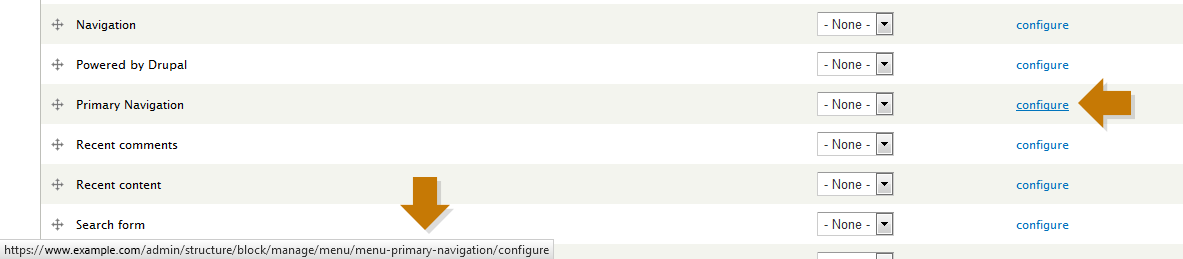
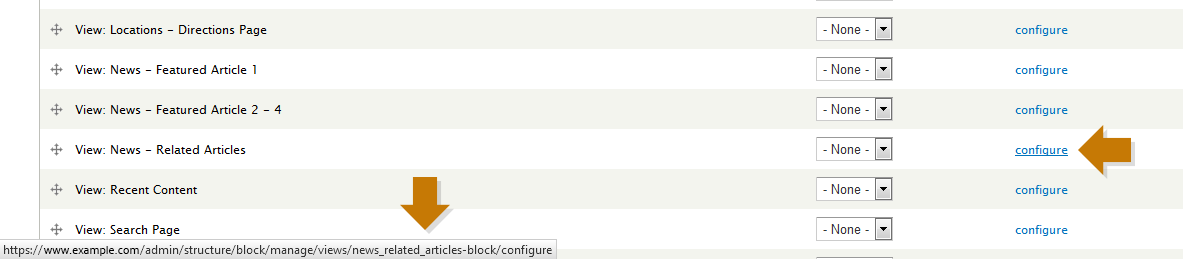
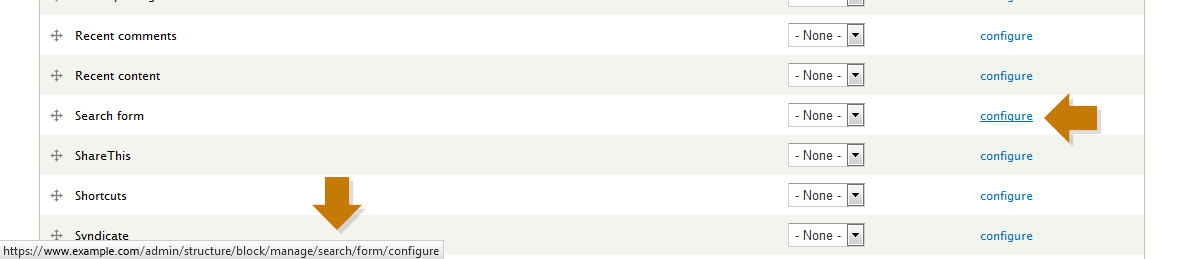
To find the name of the block that you want to embed into your template, go to Structure > Blocks and then hover your mouse over the "configure" link to the right of your block. The URL should be seen in your browser's status area. You usually want the portion just before the last "/configure".

  • URL = https://www.example.com/admin/structure/block/manage/menu/menu-primary-navigation/configure
  • Block Name = menu-primary-navigation

Sometimes the answer is a little off and you may have to guess...

Warning: I first tried this "block invoking" technique using the default 'main-menu', but I'm under the impression that Drupal treats it differently than custom menus. So my advise is don't use the default main menu for your navigation links. Create a new menu with a new name.

module_invoke


Recap on the Drupal 7 Template Heirarchy

Before we dive further into the node.tpl.php, let's recap first to make sure you're following along.

The easy way to understand how Drupal templates work is to think of them as wrappers...

  • the html.tpl.php wraps the <BODY> with certain HTML
  • the page.tpl.php wraps a node with certain HTML
  • the node.tpl.php wraps your content with certain HTML
  • the region.tpl.php wraps a region's content with certain HTML
  • the block.tpl.php wraps a block's content with certain HTML
  • the field.tpl.php wraps a field's content with certain HTML

You can sort of see the template 'levels' I've been talking about when looking at the graphic here.

Recap of setting up your template files...

  • Copy all the default template files from within Drupal's file structure
  • Paste them into your 'templates' folder
  • Proceed to edit your copies of the template files
  • Upload your new theme
  • Activate your new theme
  • Flush Drupal's cache
html.tpl.php
<BODY>
page.tpl.php
NODE/PAGE...
node.tpl.php
CONTENT...
region.tpl.php
REGION CONTENT...
block.tpl.php
BLOCK CONTENT...
field.tpl.php
FIELD CONTENT...
field.tpl.php
block.tpl.php
region.tpl.php
node.tpl.php
page.tpl.php
</BODY>
html.tpl.php

A Realistic View of Drupal 7 Templates

Here's another look at the templates in more of a layout format...

html.tpl.php

<HEAD>
</HEAD>

<BODY>

<DIV>
page.tpl.php

Login & Main Nav (header content)
node--event.tpl.php

region.tpl.php

block.tpl.php

CONTENT...
Bottom Nav (footer content)
</DIV>

</BODY>
</HTML>

I included the region.tpl.php in the diagram above just to help visualize all the basic templates together. In my method we will just swap out the region references for our own DIVs and we'll place our block codes in those DIVs.


*If you do not see the social network icons here, it is because you have an ad-blocker running. Deactivate it for this site if you want to share this link. It is safe. There are no ads on this site.

This documentation is a work-in-progress. As I continue to learn more about the software, I will try to keep this documentation updated. I'm no expert of anything, so if anyone feels they need to correct me about something I've written or wish to add some additional tips, feel free to mention it in the comments.

"Drupal 7 Theme from Scratch" was written by TenTen71 because no one else would.